How to Schedule Gear in Analog Matrix: Book Real Analog Hardware From Your Session
Your reservation ends at 8:30, and you need more time. Book the next slot without leaving your session.
When a session depends on a particular unit at a particular time, a reservation holds it for you. You used to go to our website to book one. Now the Schedule tab does it right inside the Analog Matrix plugin.
In this guide, Dr. Dan shows how to choose your gear, drag out a time and book it, then how to cancel, book several devices at once and reserve a whole chain from a preset.
Key Takeaways
- You don't have to reserve. On demand, you can insert any device that's free right now. Reserve when a session depends on a particular unit at a particular time.
- The Schedule tab books gear inside the plugin, with no trip to the website. It's for subscribers.
- Check the Time Zone first. Every time on the schedule is shown in it.
- Choose, drag, confirm: check a device, drag out 15 or 30 minutes, and click Yes.
- Several devices, or a whole chain preset, book in one drag.
- Cancel with the X on the Reserved block. Any credits it cost come straight back.
Reserve or On Demand?
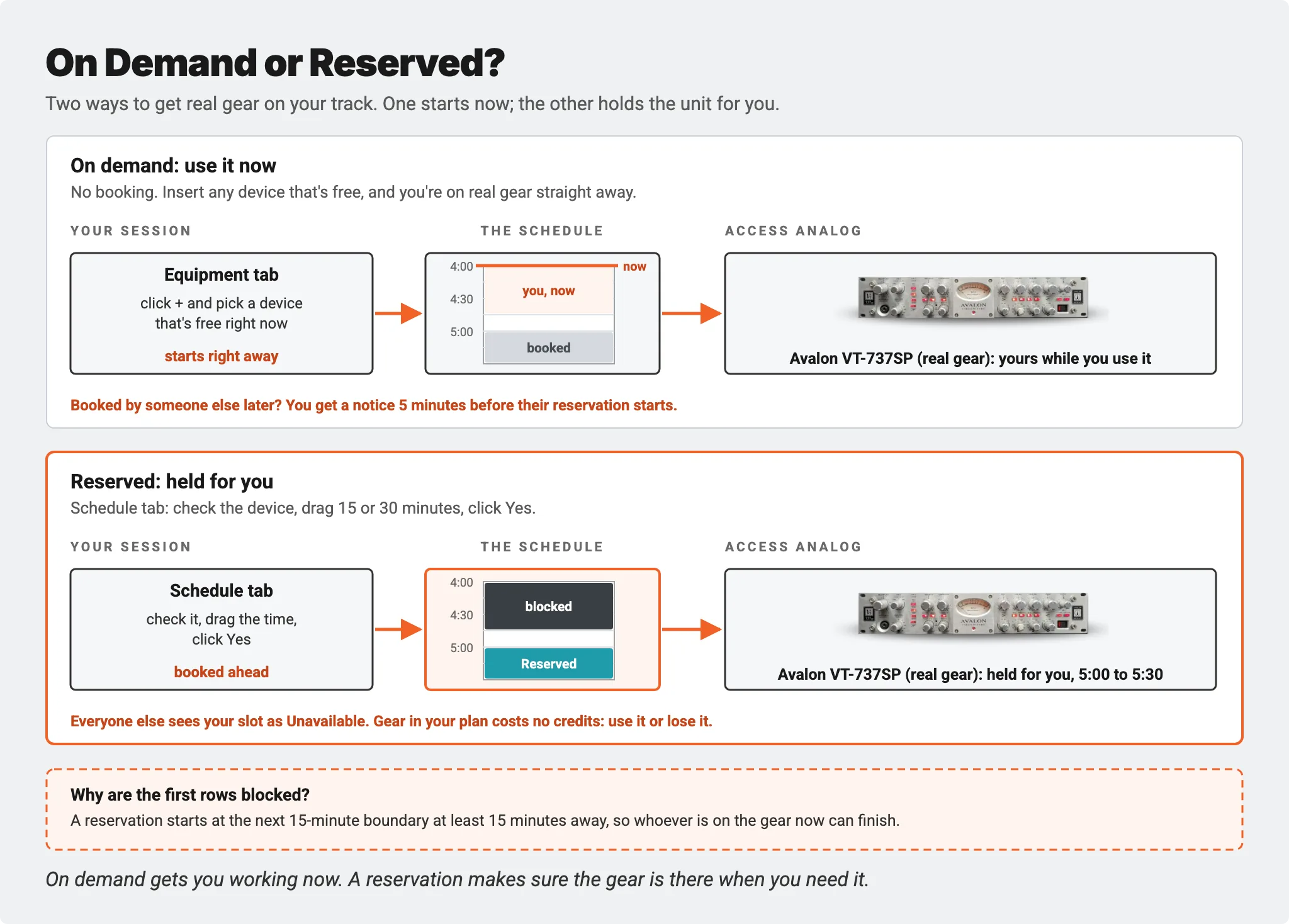
You don't have to reserve gear to use it. On demand, you insert any device that's free right now, and you're working on real hardware straight away. If someone has booked that unit for later, you get a notice 5 minutes before their reservation starts.
A reservation is for the times you can't leave it to chance: a client session, a mastering slot, or the one compressor your mix needs on a busy evening. It holds the unit for you at the time you choose, and everyone else sees that slot as Unavailable.
Open the Schedule Tab
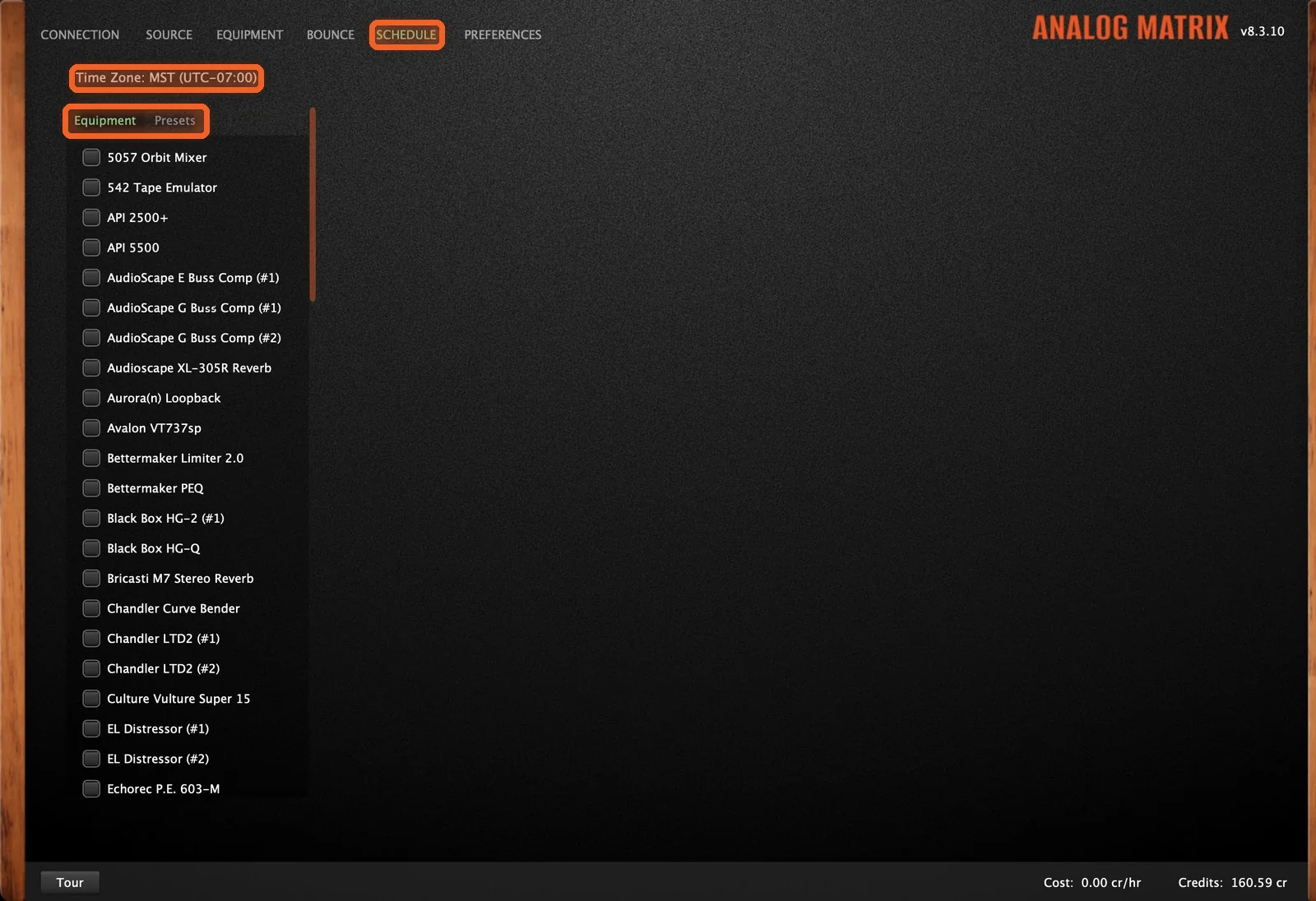
The Schedule tab sits at the top of the plugin, next to Bounce and Preferences. Your gear is listed on the left, with Equipment and Presets tabs above the list. The schedule itself appears on the right once you choose something.
Before you book, check the Time Zone at the top of the tab. All the times on the schedule are shown in that zone. If they don't look right for you, check your computer's clock, and make sure a VPN isn't placing you somewhere else.
How to Book Gear, Step by Step
Step 1: Choose Your Gear
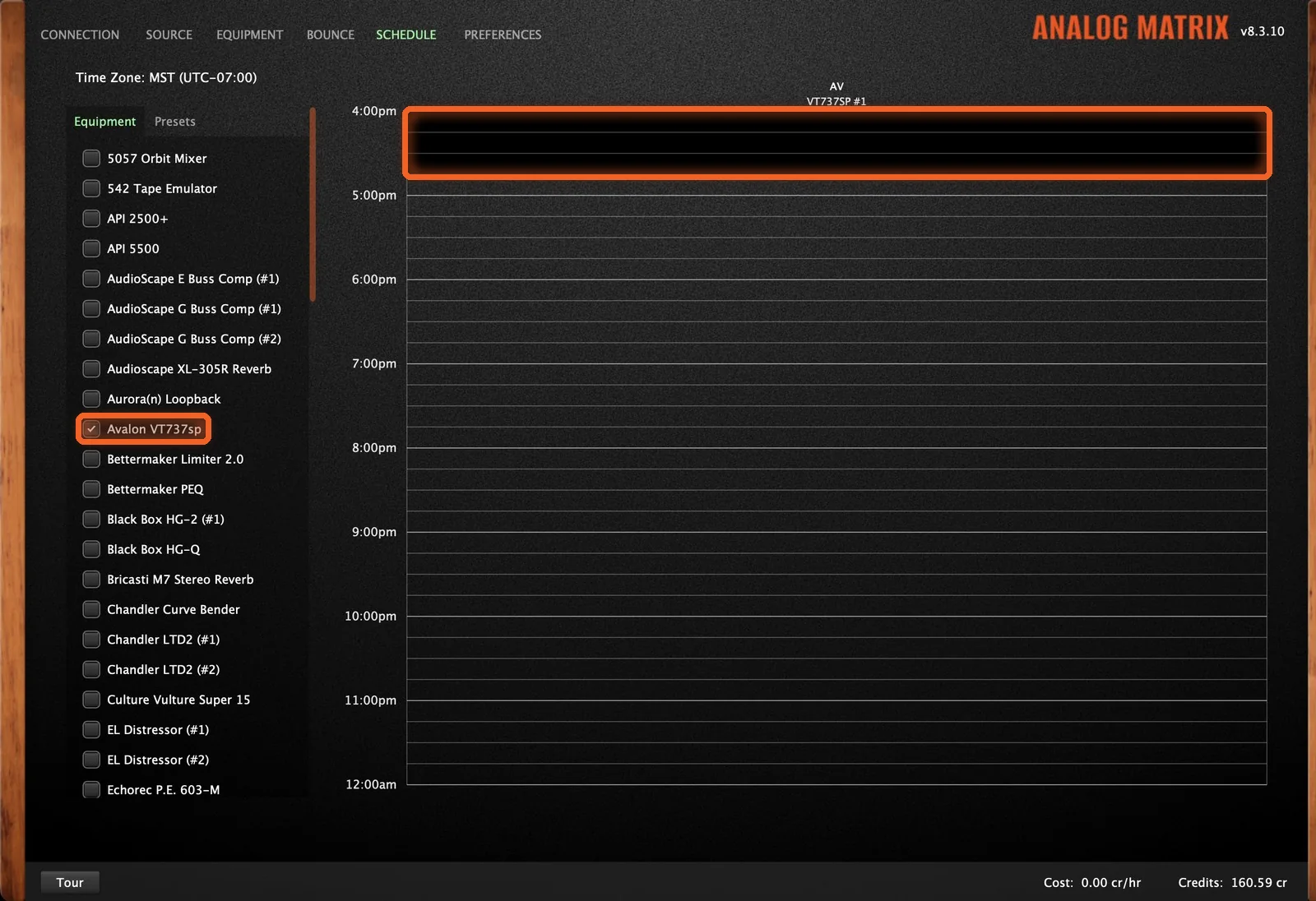
Check a device in the list, and its schedule appears as a column on the right. Here, Dan picks an Avalon VT-737SP.
Times someone else has booked show as Unavailable. The next few minutes are blocked out as well, so whoever is using the gear now has time to finish. The schedule opens at the next 15-minute boundary that's at least 15 minutes away.
Step 2: Drag the Time
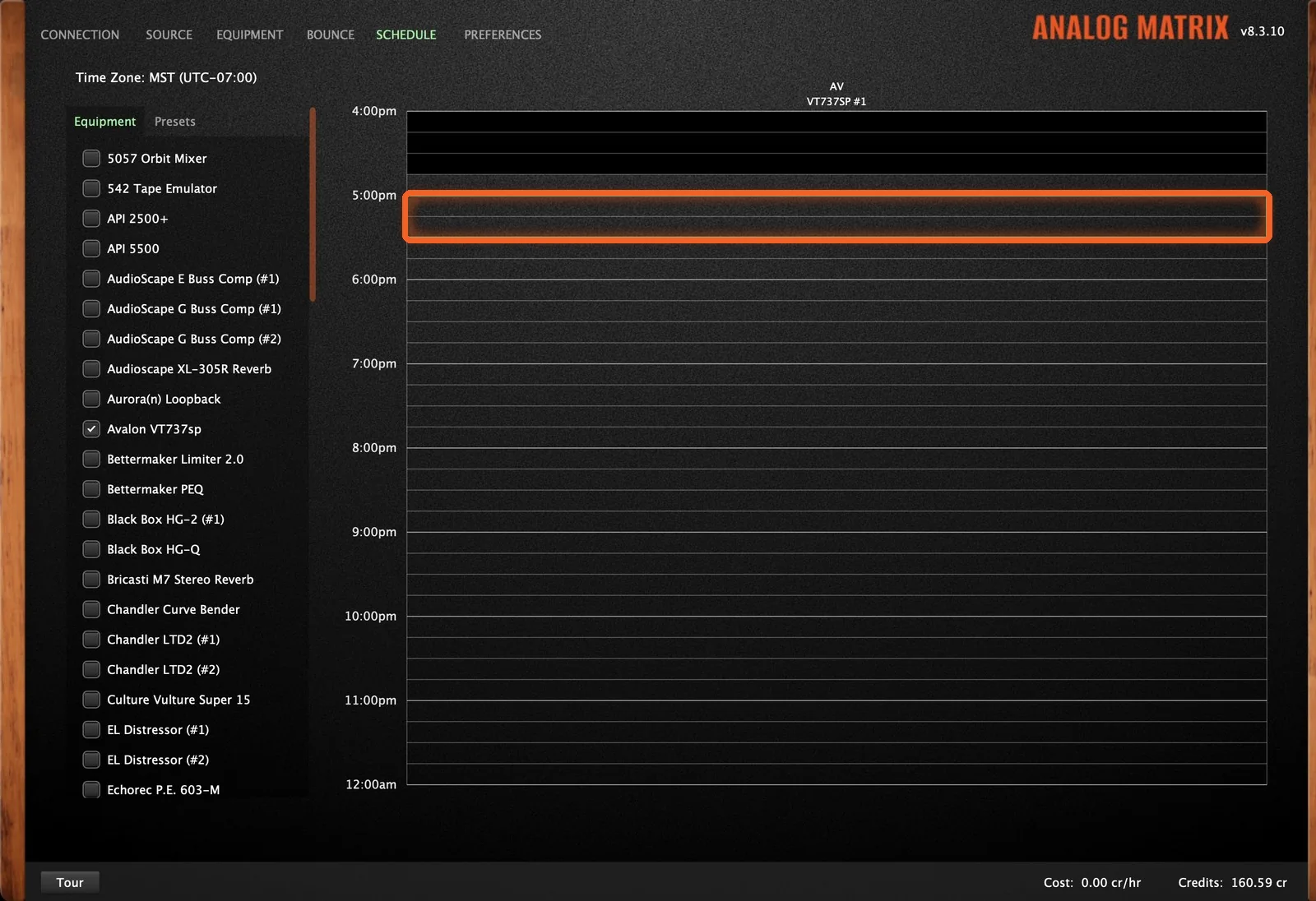
Click your start time and drag down to your end time. A green outline shows the time you've selected. Reservations go in 15-minute steps, up to 30 minutes.
Step 3: Book It
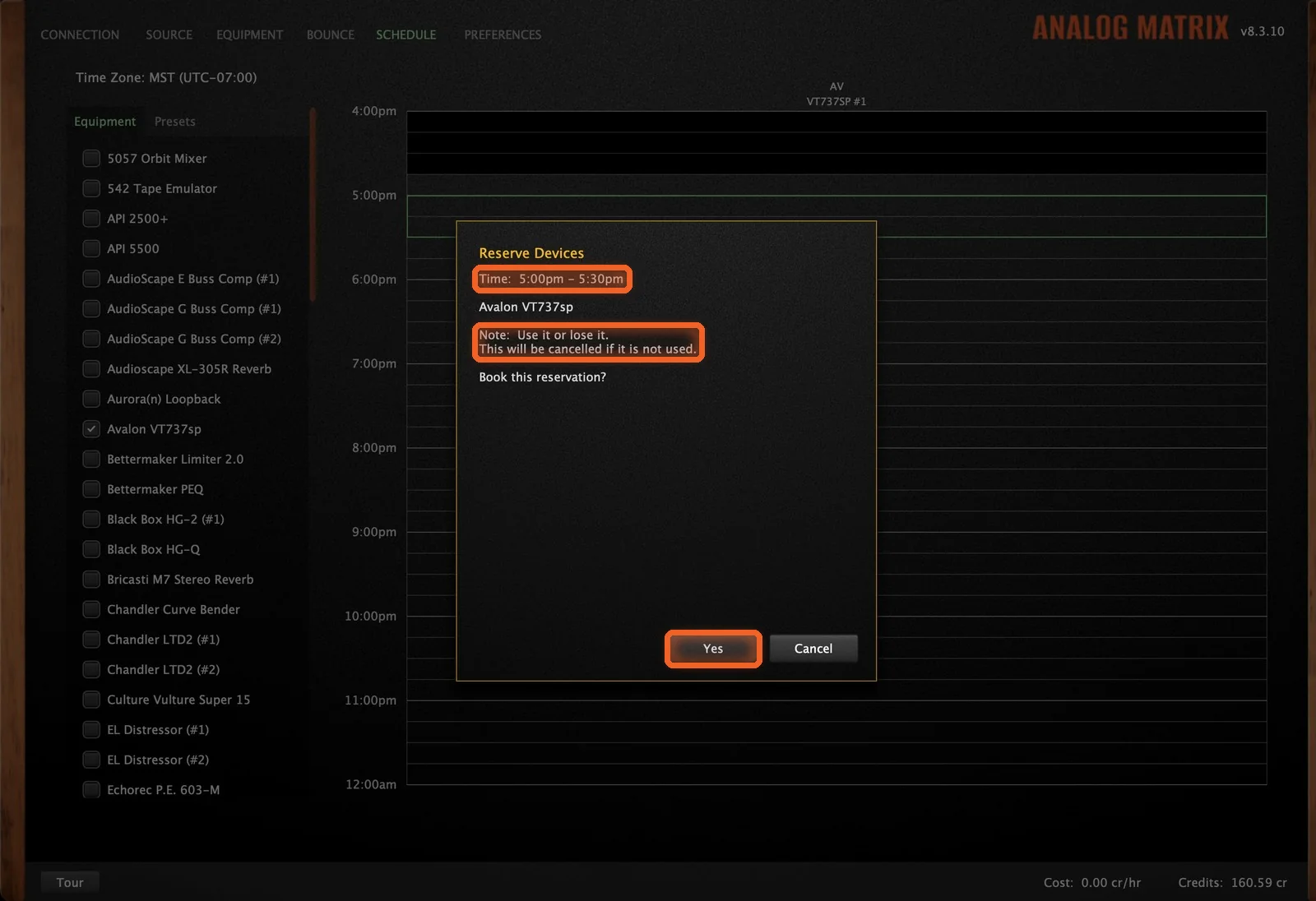
When you let go, the Reserve Devices box opens with the time and the gear. Check the details and click Yes.
If the device is part of your plan, it costs no credits, and the box adds a note: use it or lose it. A reservation that costs no credits has to be used, or it's canceled.
Step 4: It's Reserved
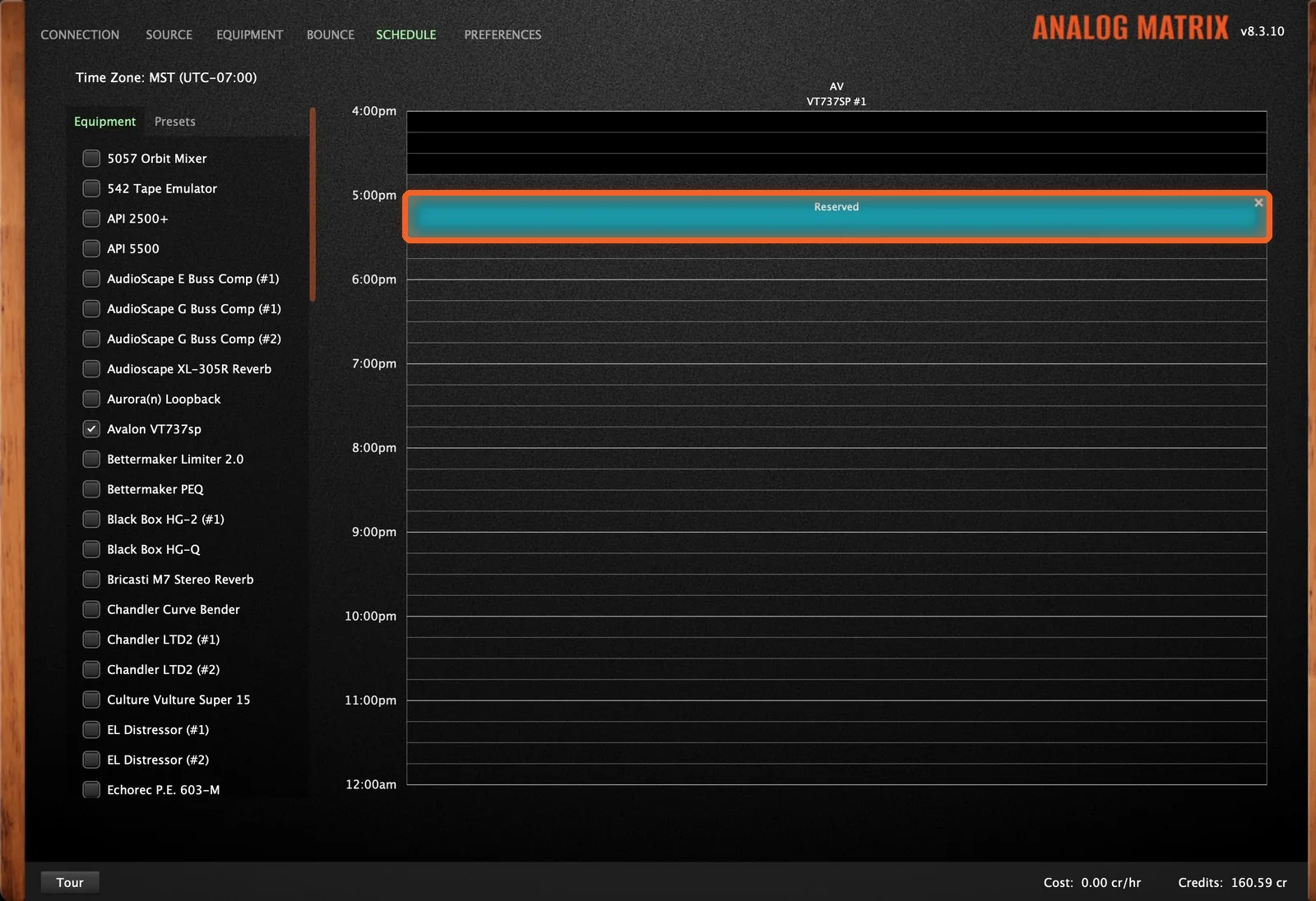
The slot reads "Reserving..." for a moment, then turns into a teal Reserved block. The time is now held for you.
How to Cancel a Reservation
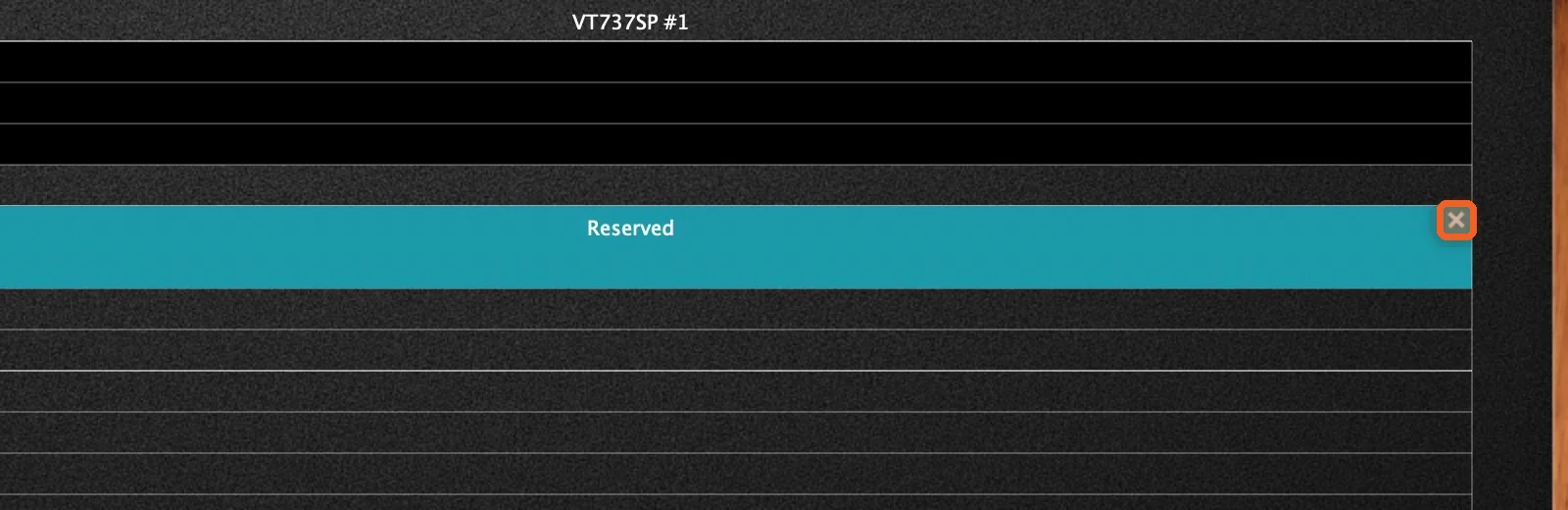
If you finish early, or your plans change, click the small X at the top right of the block. It reads "Cancelling..." and then disappears. That frees the gear up for someone else, and we always appreciate it.
Book Several Devices at Once
Check More Than One Device
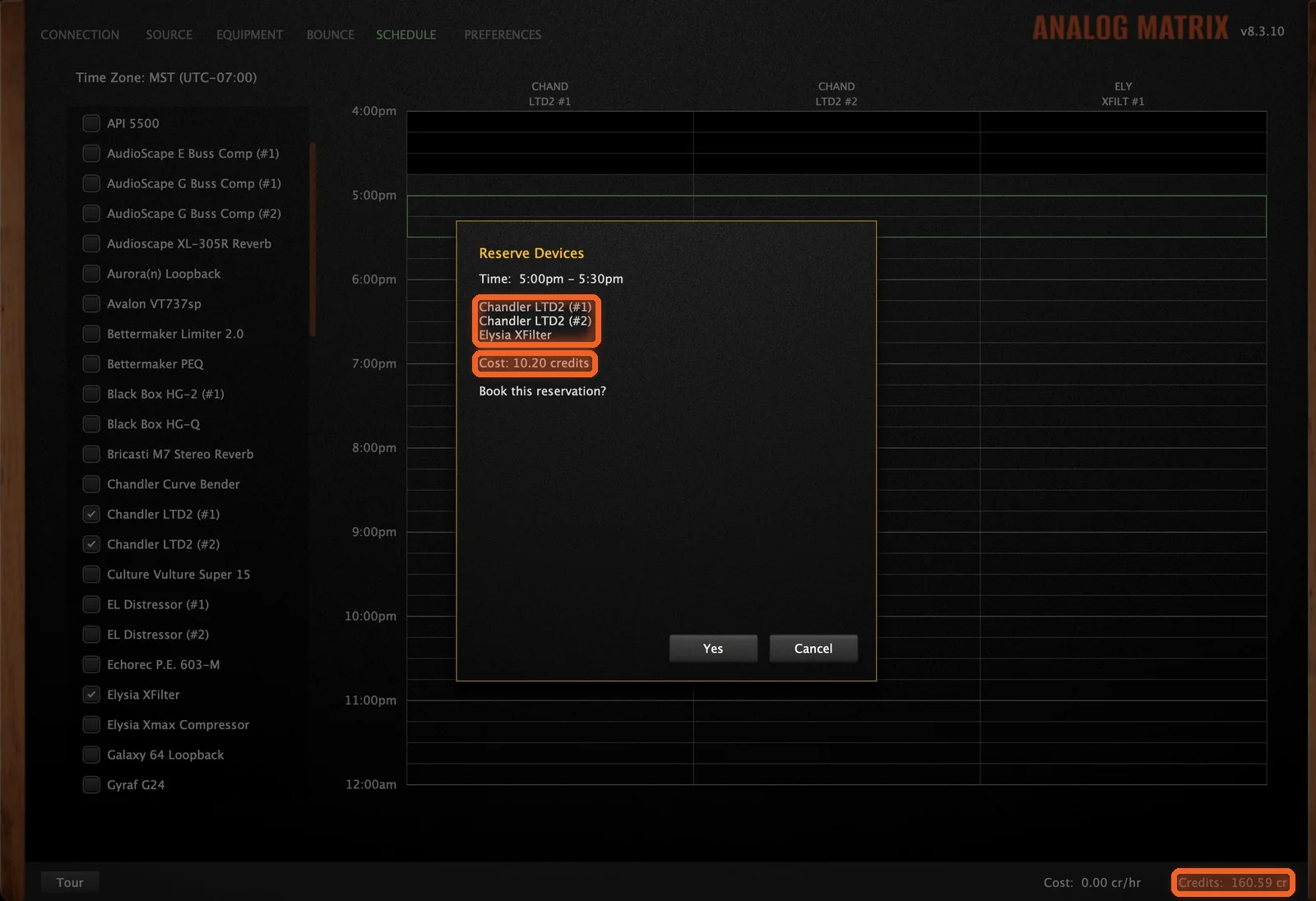
Check more than one device and each gets its own column. One drag then reserves them all for the same time. Dan books two Chandler LTD-2 units and an Elysia XFilter together.
If a reservation includes gear your plan doesn't cover, such as a device outside your tier or more devices than your chain size allows, the Reserve Devices box shows the cost in credits before you book. Each unit's reservation rates are on our Gear Prices page.
Watch Your Balance
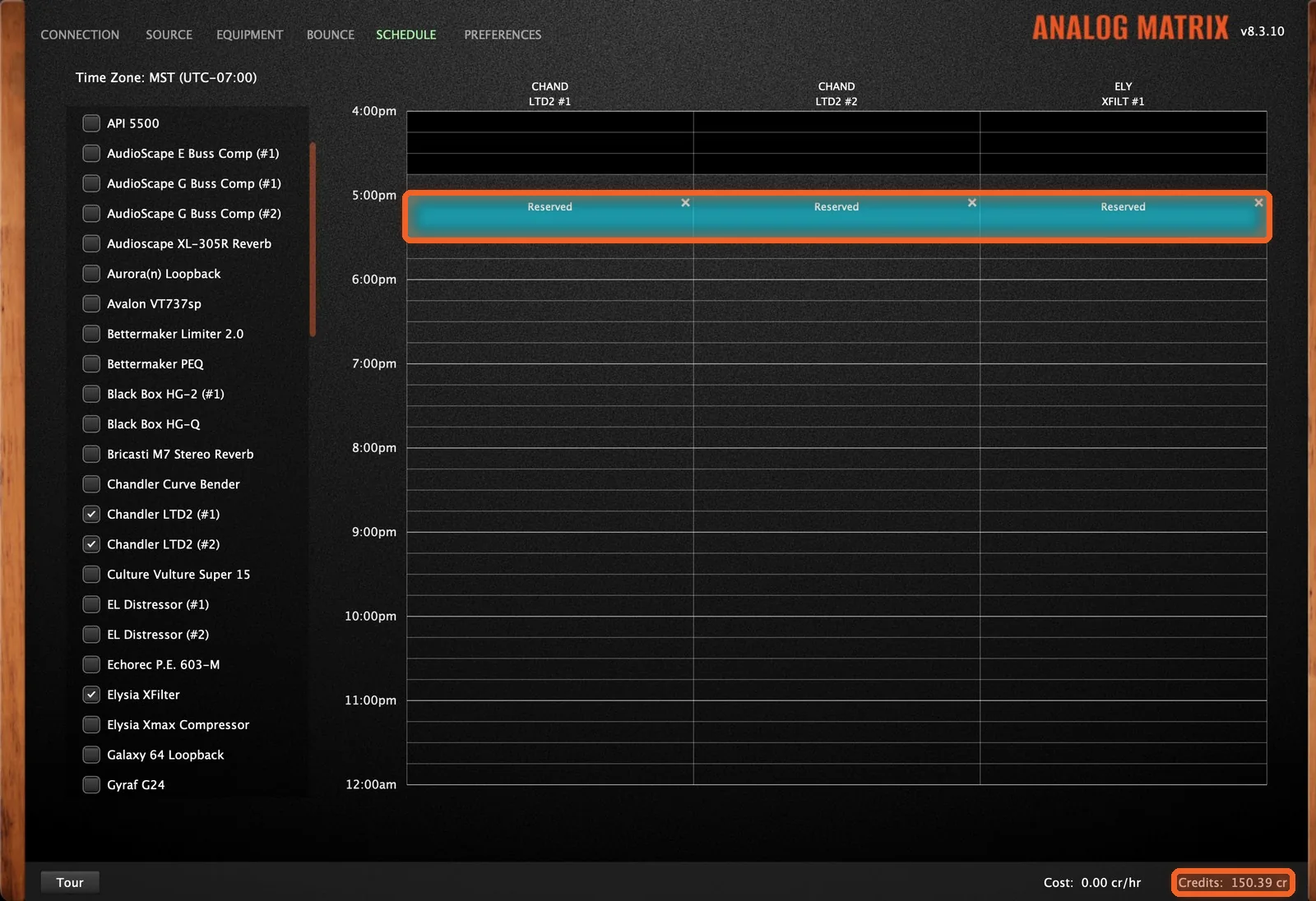
Click Yes, and each device gets its own Reserved block. Your credit balance at the bottom of the plugin drops by the cost straight away. Cancel a reservation, and those credits come right back. If you've booked several devices, cancel each one with its own X.
Book a Whole Chain From a Preset
Choose a Chain Preset
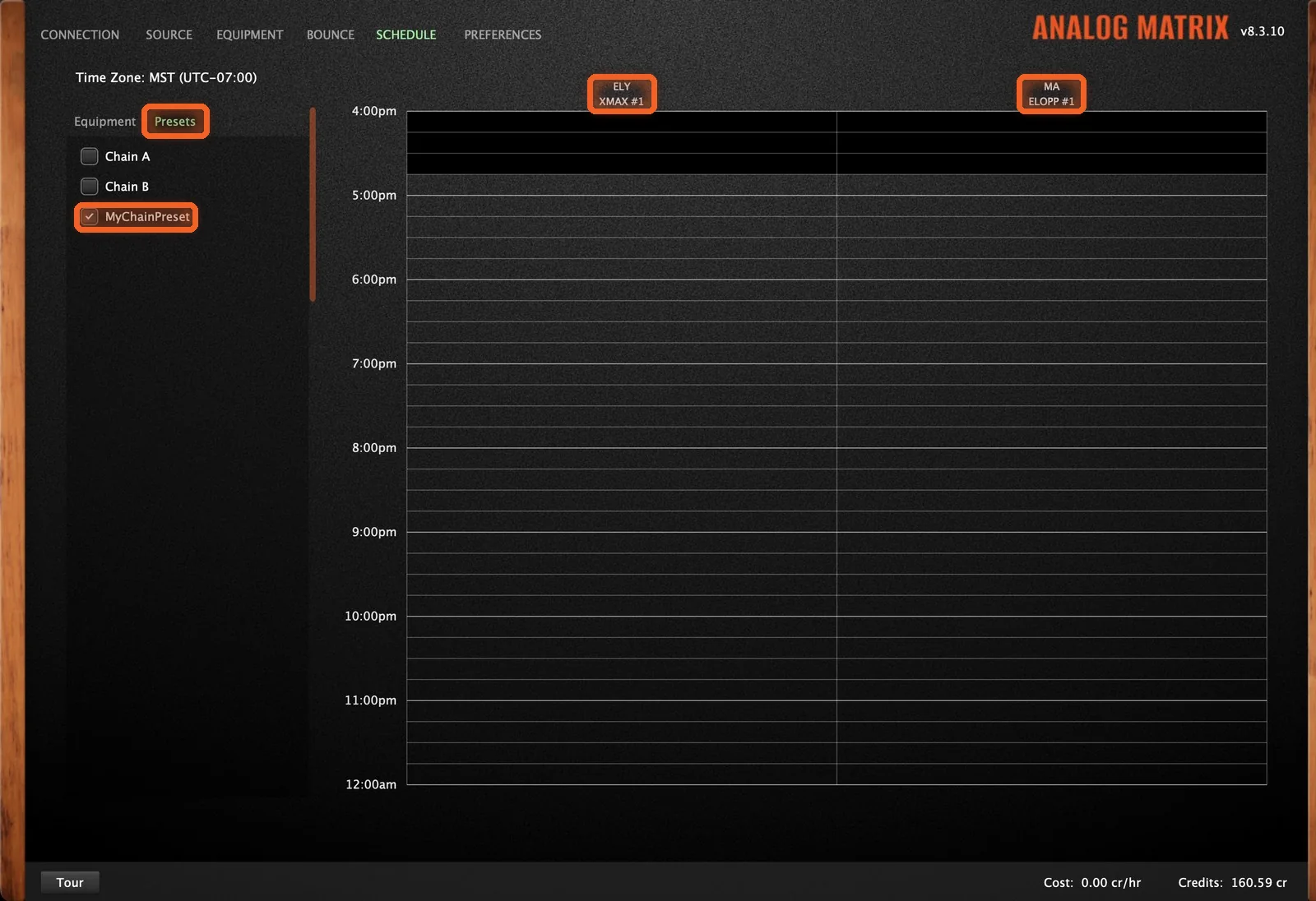
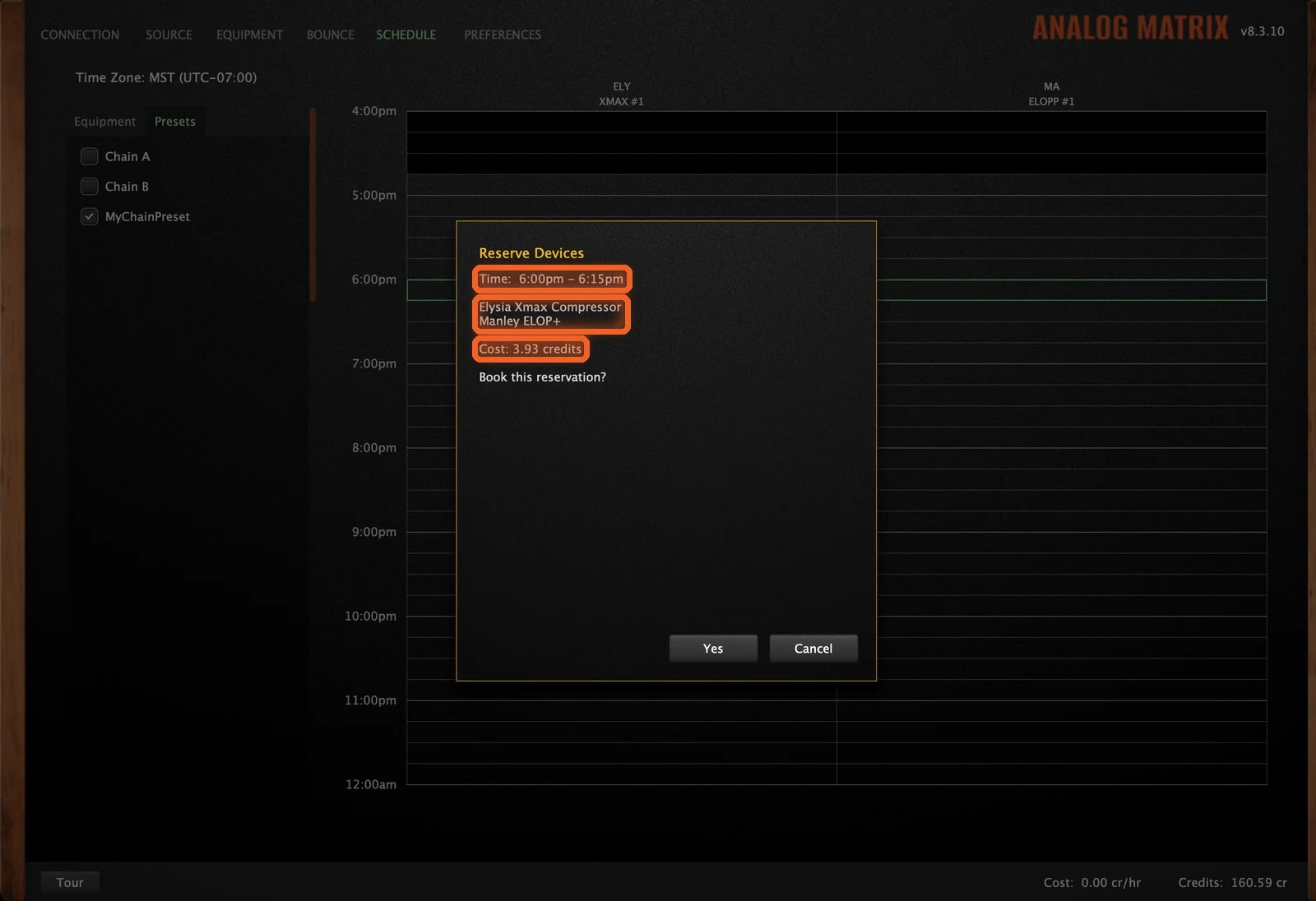
You can also start from one of your chain presets. Open the Presets tab above the list and check a preset, and every device in it is chosen for you. Dan's preset holds an Elysia xmax, followed by a Manley ELOP+. Our Hardware Presets guide shows how to save a chain.
Drag the Time and Book the Chain
Drag the time, and the Reserve Devices box lists every device in the chain, with any cost in credits. Here Dan books 15 minutes, from 6:00 to 6:15. Click Yes, and you've booked the whole chain in one go.
Good to Know
- The Schedule tab is for subscribers.
- Reservations go in 15-minute steps, up to 30 minutes.
- A reservation starts at least 15 minutes out, so current users have time to finish.
- Gear that's part of your plan is use it or lose it. If it isn't used, the reservation is canceled.
How Do I Get Started?
Download the Analog Matrix. One free download from our downloads page installs the plugins (VST, VST3, AU and AAX) and the standalone app, for Mac and Windows. It is not an emulation: every knob you move turns a real control on real hardware in our racks.
Try it for free. A new account starts with 12 free credits, roughly an hour on an average device: enough to put real gear on your track on demand and hear what it does.
Subscribe to book from the plugin. The Access Analog Subscription (Essential, Pro or Elite) includes the Schedule tab, plus unlimited time on the gear in your tier, up to the chain size you choose.
Book It, Then Get to Work
Choose your gear, drag the time and book it, and the hardware is waiting for you, without ever leaving your session.
Reserve real Avalon, Chandler, Elysia, Manley and more, right from your DAW.
FAQs
Do I have to reserve gear to use it?
No. On demand is the default: connect with the plugin, insert a device that's free, and use it right away. A reservation is for when you need a guaranteed slot.
Who can use the Schedule tab?
The Schedule tab is for subscribers. Not a subscriber? You can still book gear on our Reserve page.
How long can a reservation be?
Reservations go in 15-minute steps, up to 30 minutes.
How soon can a reservation start?
The schedule is blocked out until the next 15-minute boundary that's at least 15 minutes away, so whoever is using the gear now has time to finish.
Why don't the times on the schedule look right?
Check the Time Zone at the top of the Schedule tab. If it's wrong, check your computer's clock, and make sure a VPN isn't placing you somewhere else.
What does "use it or lose it" mean?
A reservation that costs no credits, such as gear that's part of your plan, has to be used. If it isn't used, it's canceled.
Will I see the cost before I book?
Yes. If a reservation includes gear your plan doesn't cover, such as a device outside your tier or more devices than your chain size allows, the Reserve Devices box shows the cost in credits before you click Yes.
Can I cancel a reservation?
Yes. Click the X on the Reserved block. If the reservation used credits, they come right back.
Can I reserve more than one device at the same time?
Yes. Check several devices, or check one of your chain presets on the Presets tab, and one drag reserves them all.
Hear what real analog gear does to your own mix, before you buy a single piece of it.
Run real outboard hardware from your DAW. New accounts get 12 free credits.
Connect todayMore in Getting Started
All posts →