How to Use the Analog Matrix Standalone App: Real Analog Gear, No DAW Required
Your mix is done. Why open your DAW again?
When you install the Analog Matrix, you get the plugins and a standalone app. It's the same Analog Matrix, with the same tabs and the same gear, but it doesn't need a DAW. It runs all by itself.
That makes it the efficient choice whenever you're working with files instead of a live session. In this guide, Dr. Dan shows the short setup, then four ways to use the app: one file, many files, summing and the quick rebounce.
Key Takeaways
- Same Analog Matrix, no DAW: the app has the plugin's tabs, gear, controls and playback, and it comes free in the same download.
- One-time setup: pick your output (Output 1 + 2), match the sample rate across the app, your file and your streaming format, set the buffer and connect.
- Master one file: load it, play it from our server, loop a section, build your chain and bounce.
- Bounce many files (Elite): put them in a file set and choose the set as your Bounce source. Each file runs through the same chain with the same settings.
- Sum up to 16 channels from stems that are already on our server, so nothing streams up while you work. The summing mixer goes first in the chain.
- Quick rebounce: recall the chain preset, load the source, make the tweak and bounce. No session to find.
Setting Up the Standalone App
The app needs one thing the plugin doesn't: somewhere to send the sound. Setup takes a minute, and you only do it once.
Step 1: Choose Your Output
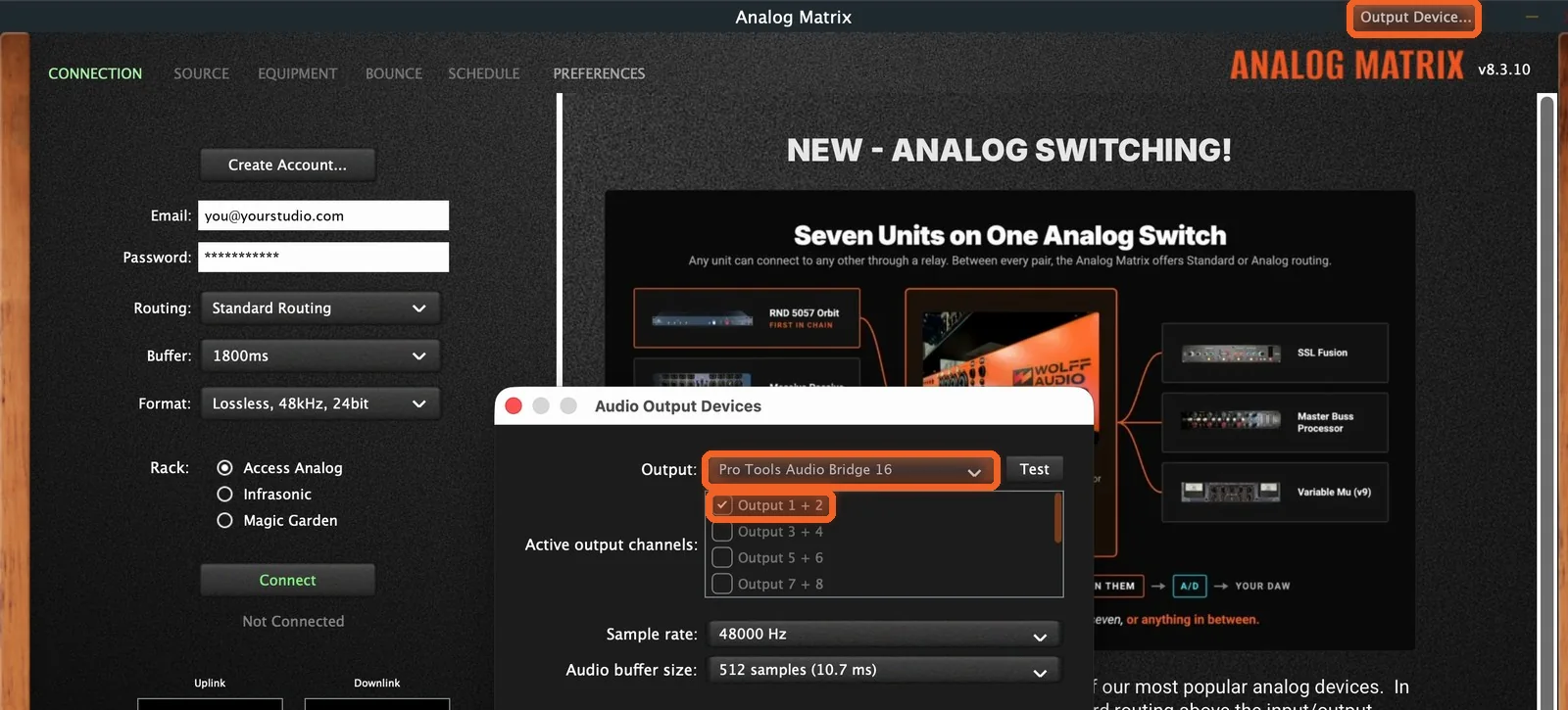
Click Output Device at the top right of the app window, and choose your speakers or your interface under Output. If your device has more than two outputs, the window also shows Active output channels. Make sure Output 1 + 2 is checked.
Step 2: Match Your Sample Rate
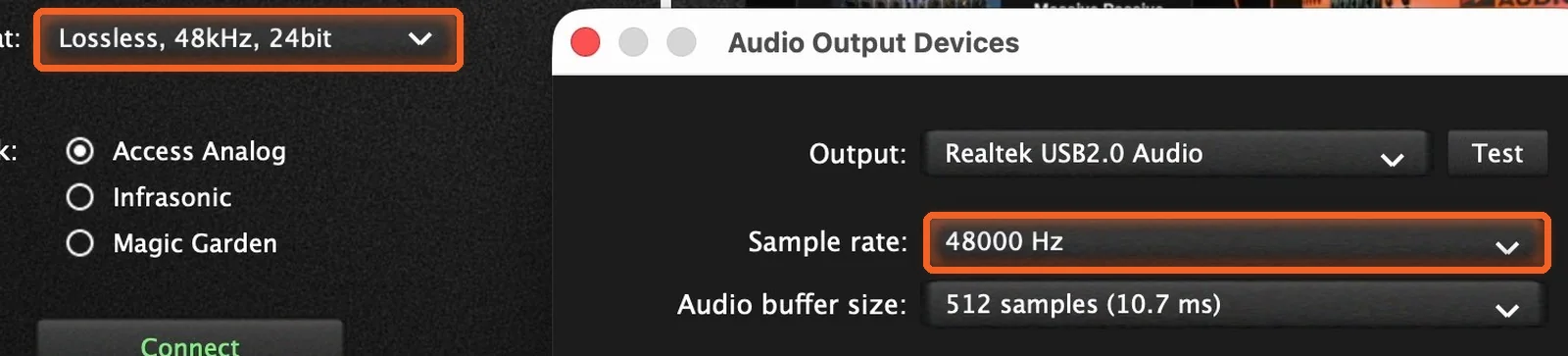
Ideally, the app's Sample rate, your file and the format you stream in (Format on the Connection tab) all use the same rate, so nothing has to be resampled.
Step 3: Set Your Buffer and Connect
Audio buffer size works like the block size in your DAW. Set it, close the window and connect, the same way you do in the plugin. Our Connection Tab guide covers format, buffer and routing in full.
Way 1: Master One File
Your mix is done, and you're ready to master. At that point, a DAW doesn't buy you much.
Load Your Mix and Press Play
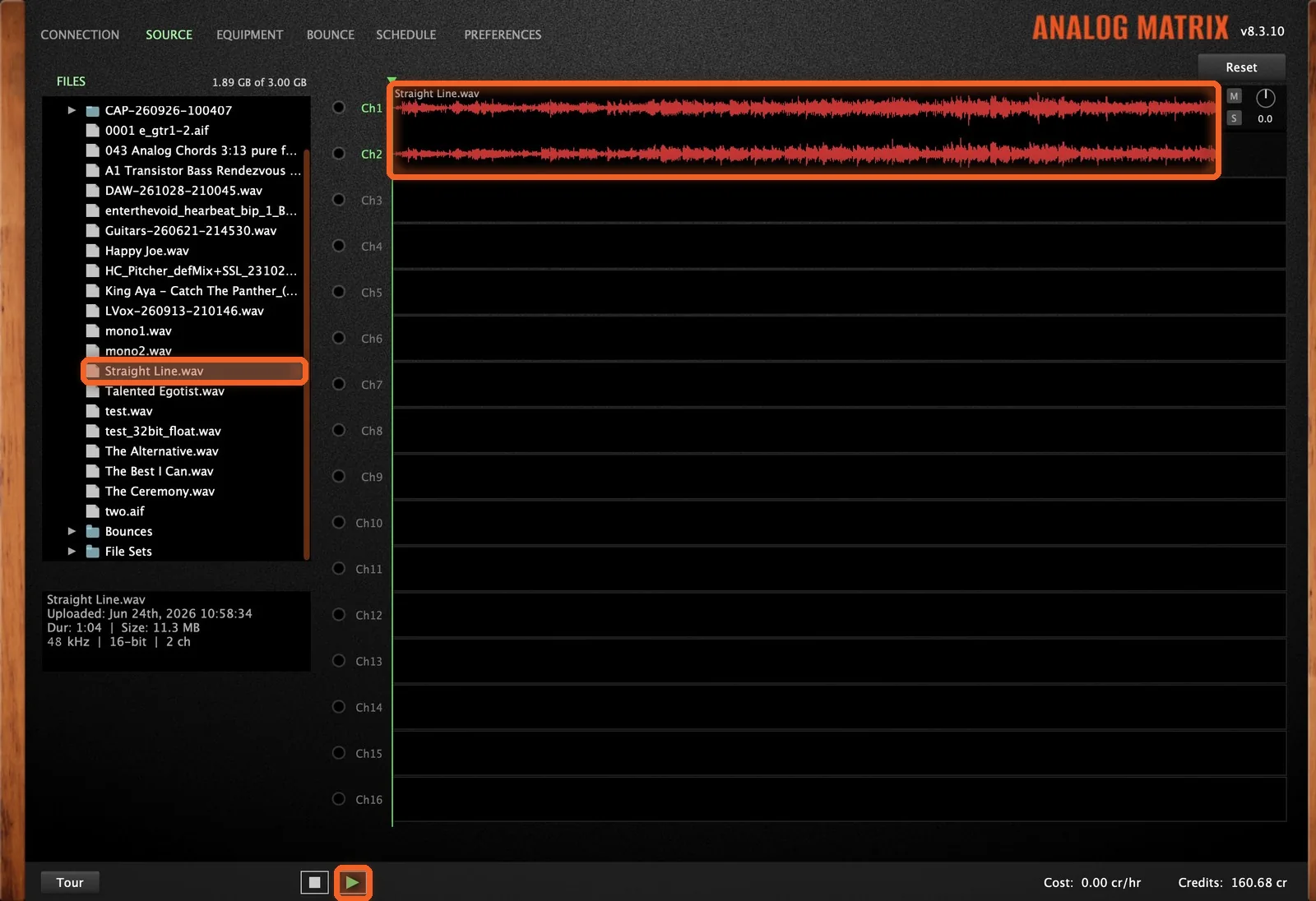
Drag your stereo mix from the Files list onto the channels, then press play in the footer of the app. It plays straight from our server. If it isn't on the server yet, drag it into the Files list first (our Cloud Storage guide has the details). You can also click in the waveform to move the playhead and use the spacebar to start and stop.
Loop a Section
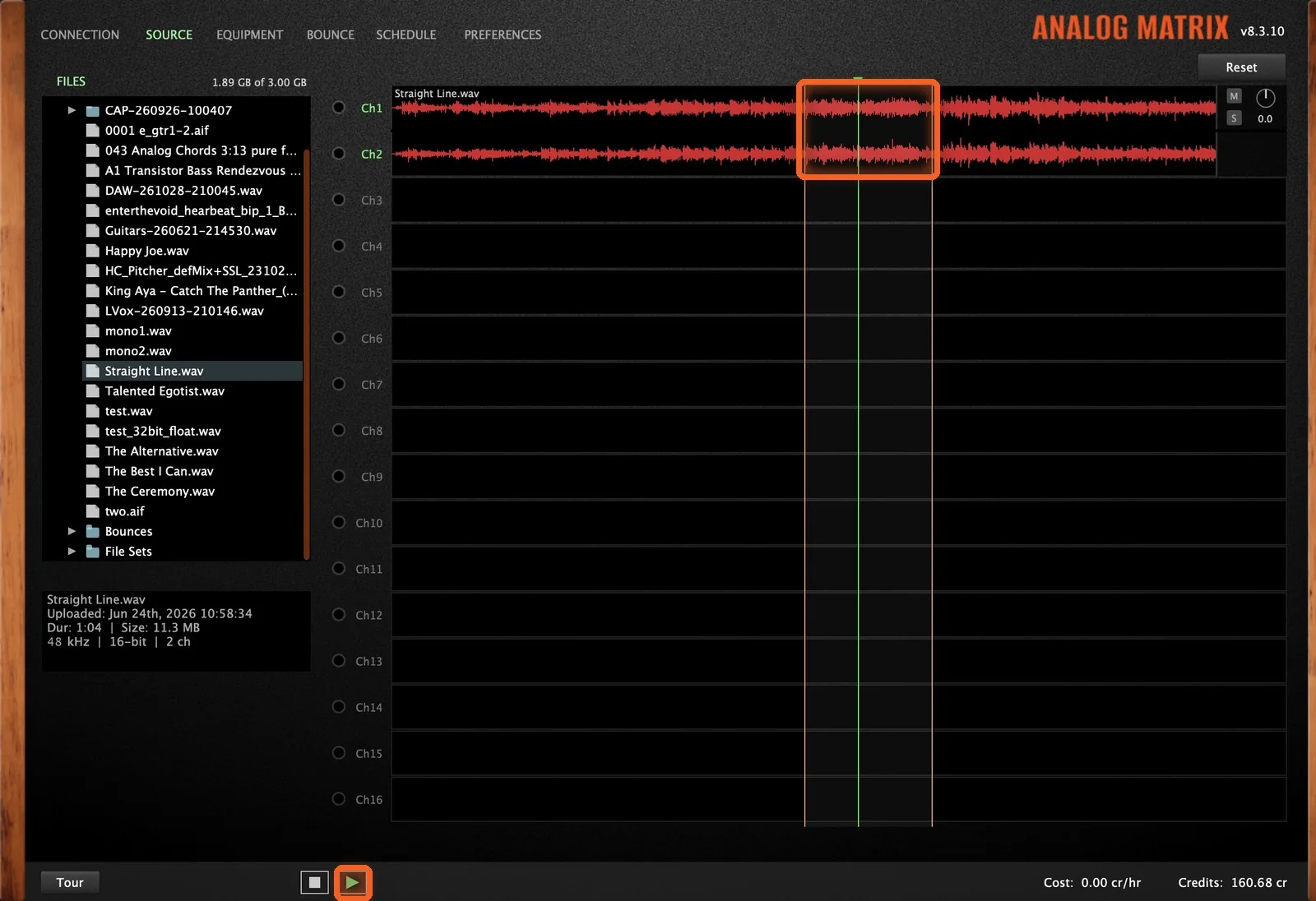
Drag across the waveform to mark a section, and it keeps repeating. That's the easy way to stay on a chorus while you work.
Build Your Chain
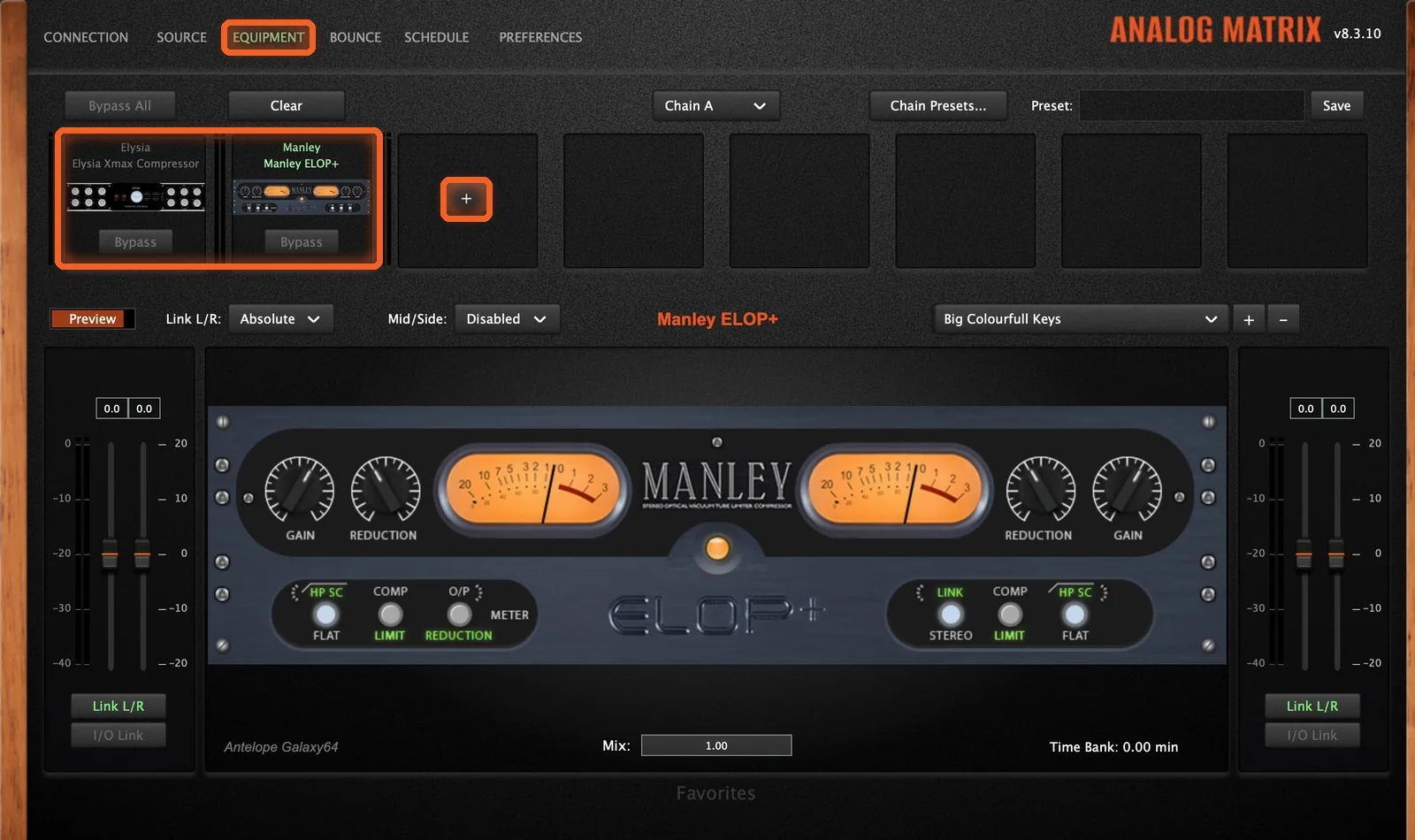
On the Equipment tab, build your chain and work on the sound while it plays, just as you would in the plugin.
Bounce It
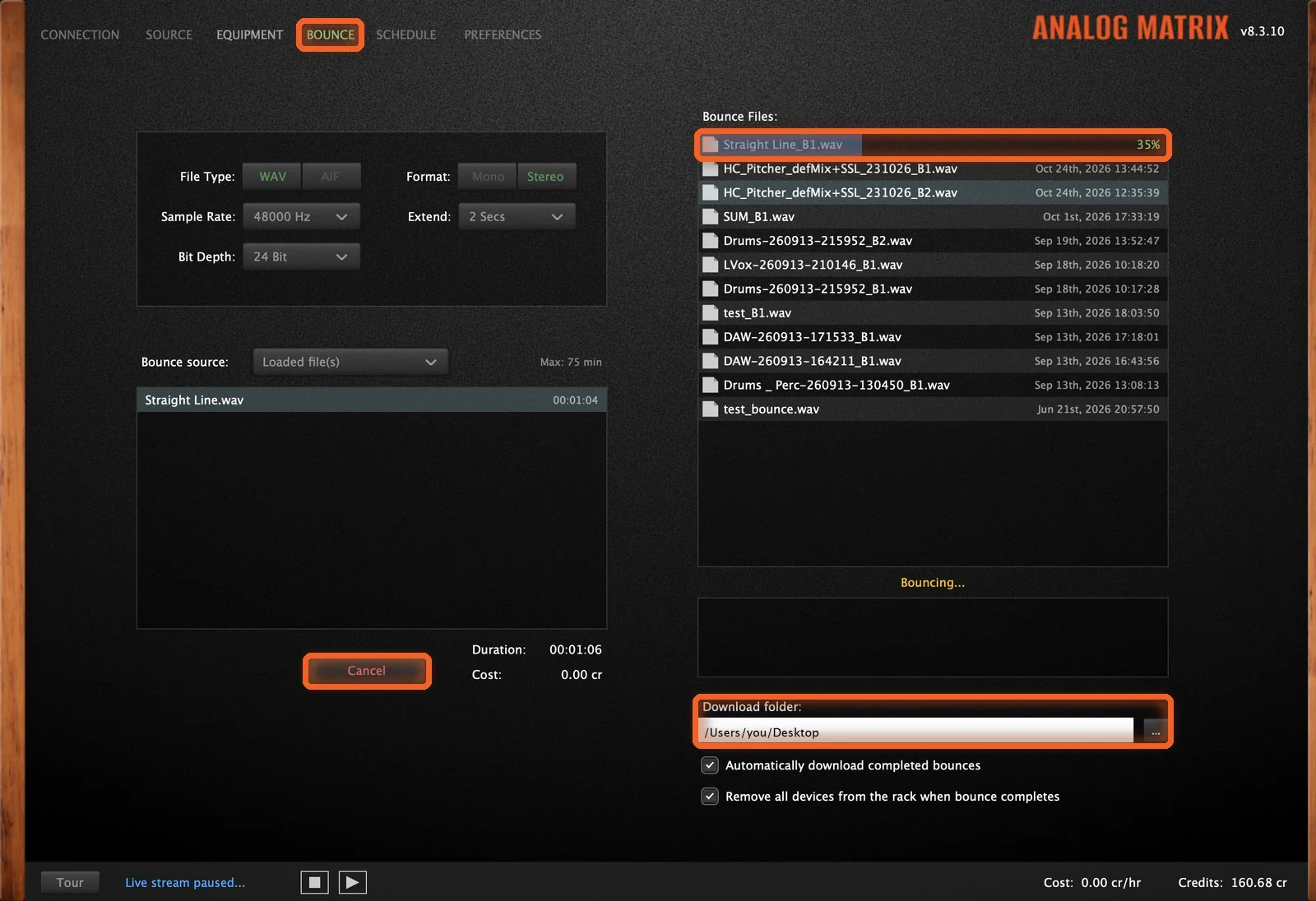
When it sounds right, go to the Bounce tab and press Bounce. The finished file lands in your download folder. Our Offline Bounce guide covers every setting.
Way 2: Bounce Many Files
Say you have a stack of files to run through the same chain, with the same settings. Multi-file bouncing handles them one after another while you do something else. It's for Elite subscribers, and it works in the plugin too, but it's most common in the app.
Make a File Set
On the Source tab, right-click File Sets and choose Create New File Set. Then drag in the files you want to bounce together.
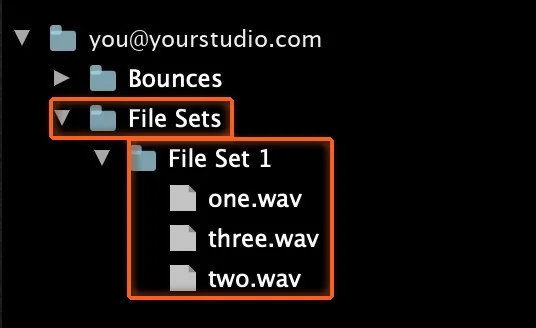
Choose It as Your Bounce Source
On the Bounce tab, set Bounce source to your file set. The list shows its files in the order they'll bounce.
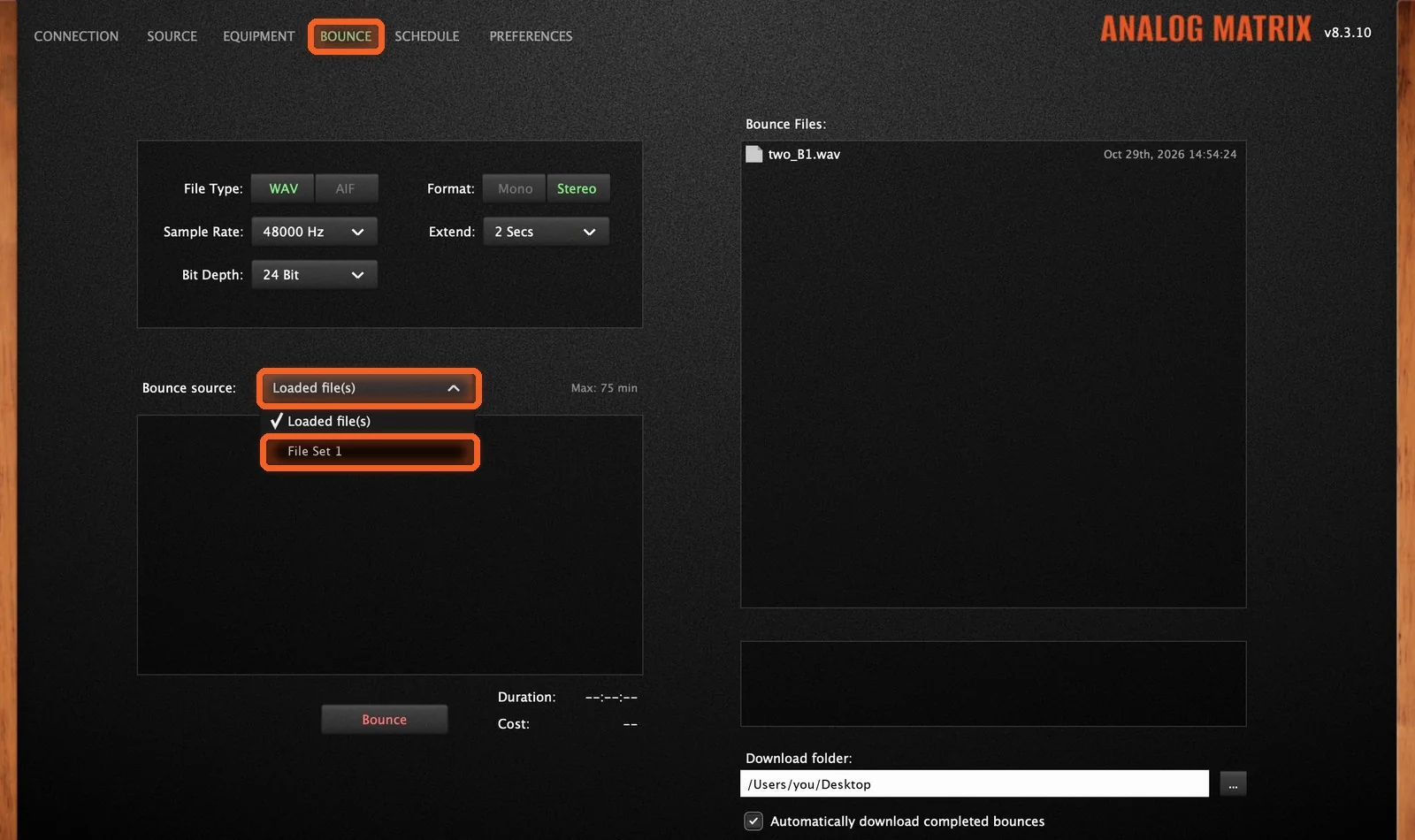
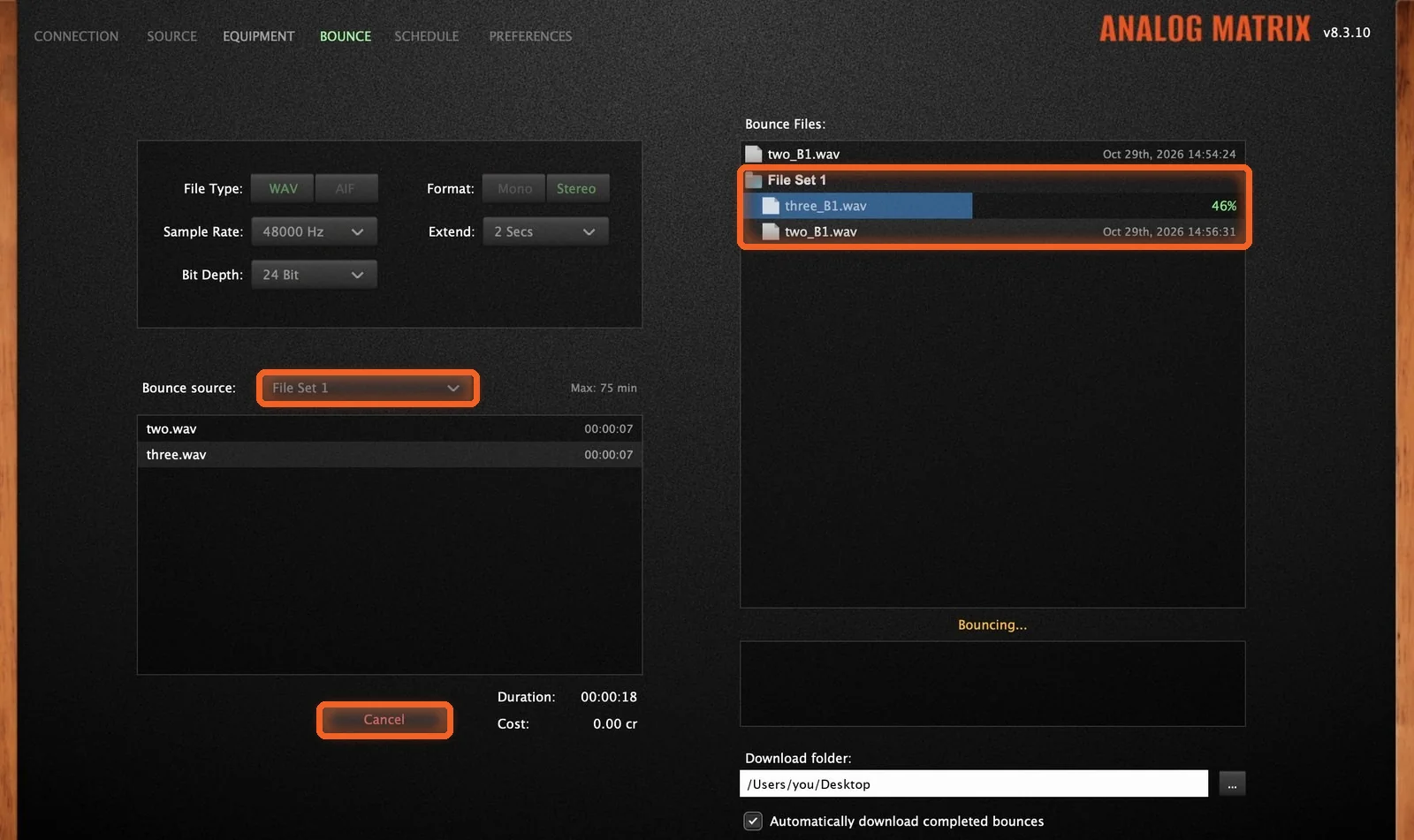
Press Bounce and Walk Away
Press Bounce, and go have a cup of coffee. Each file bounces in turn, and they all land in your download folder.
Way 3: Summing
Streaming sixteen channels up for live summing from your DAW can ask a lot of your connection. In the app, your stems are already on our server, so nothing has to go up while you work.
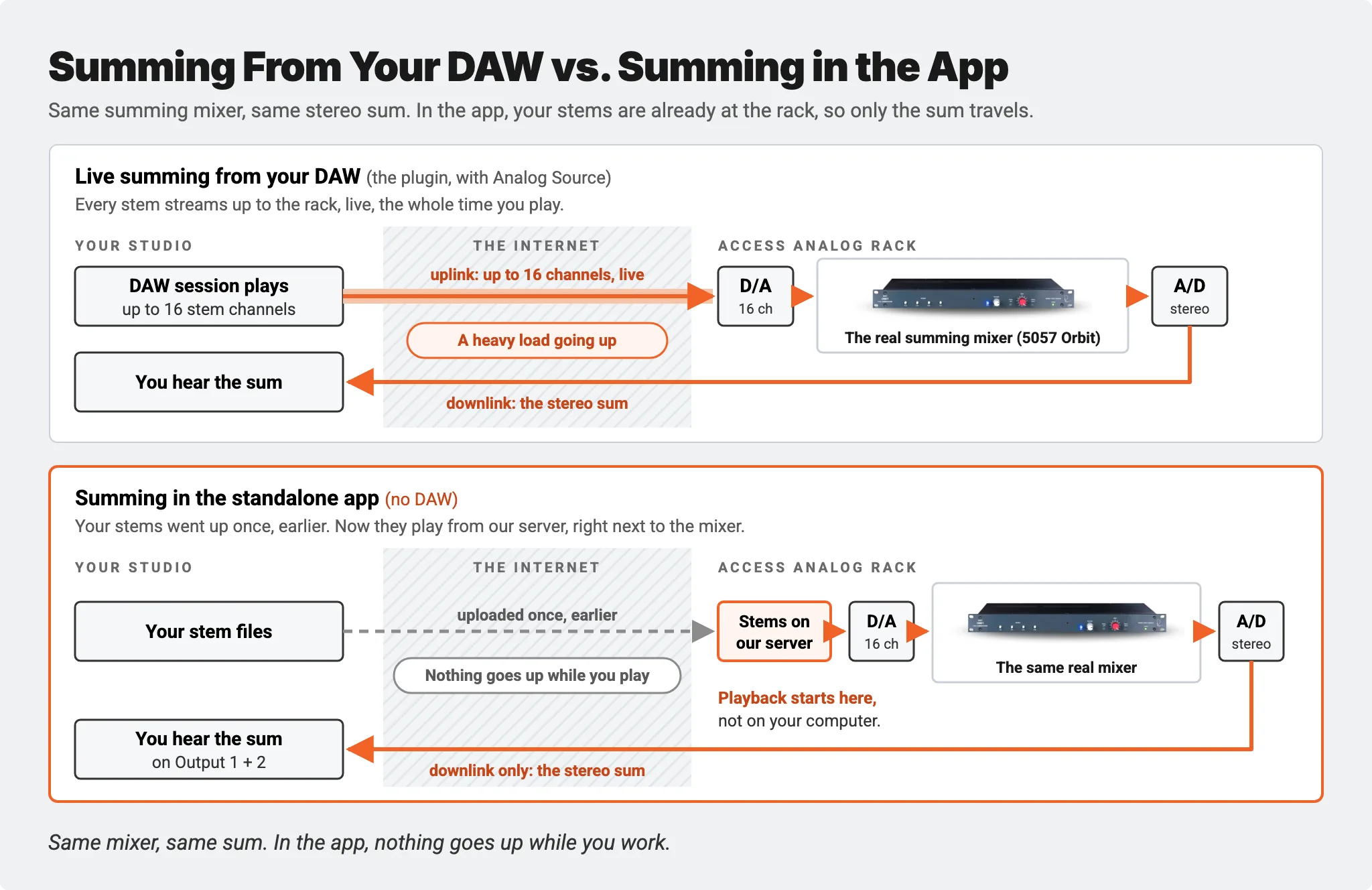
Load Your Stems
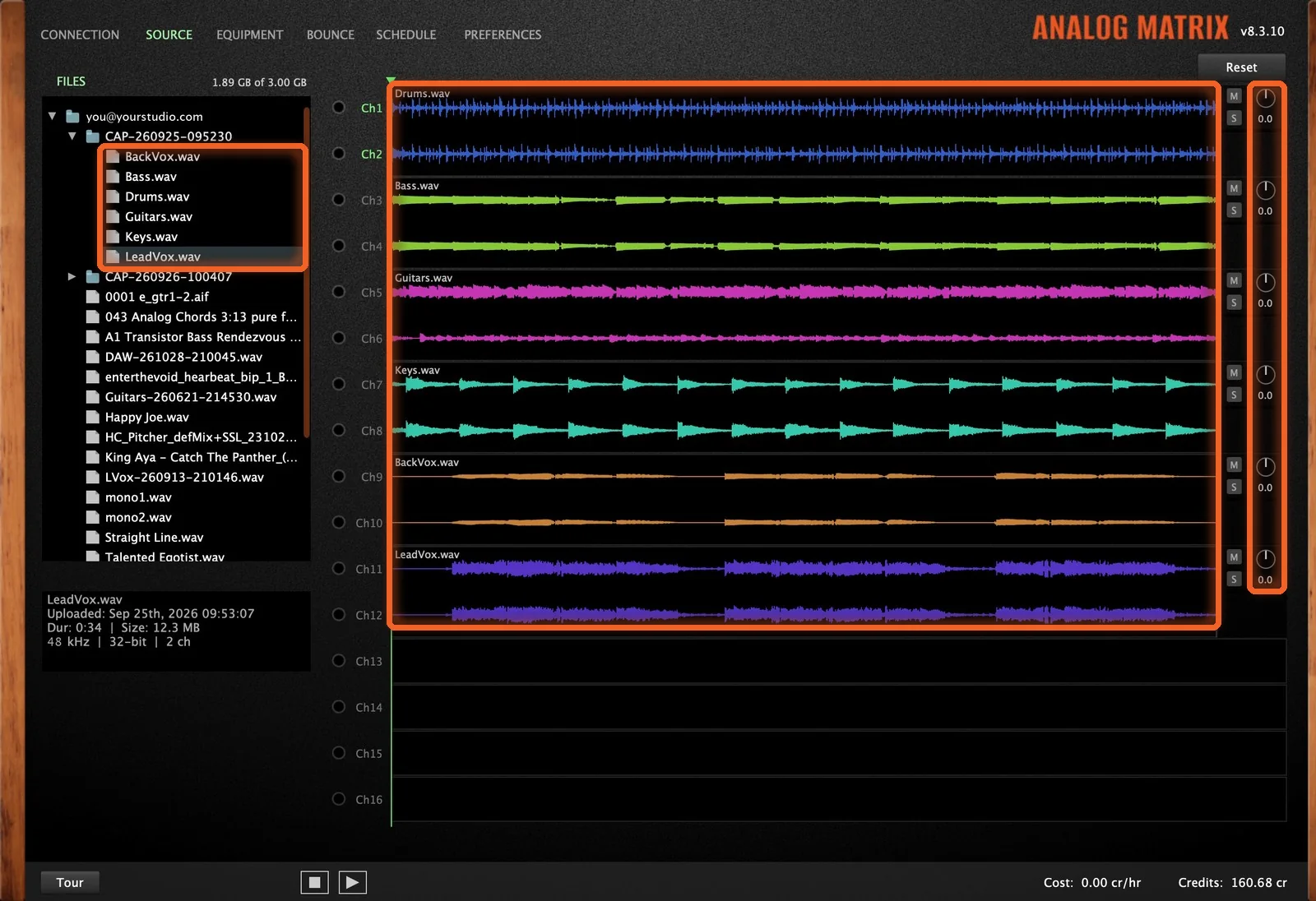
Drag each stem from the Files list onto its channels. You can load up to 16 channels: eight stereo stems, sixteen mono, or any mix of the two.
Add a Summing Mixer First
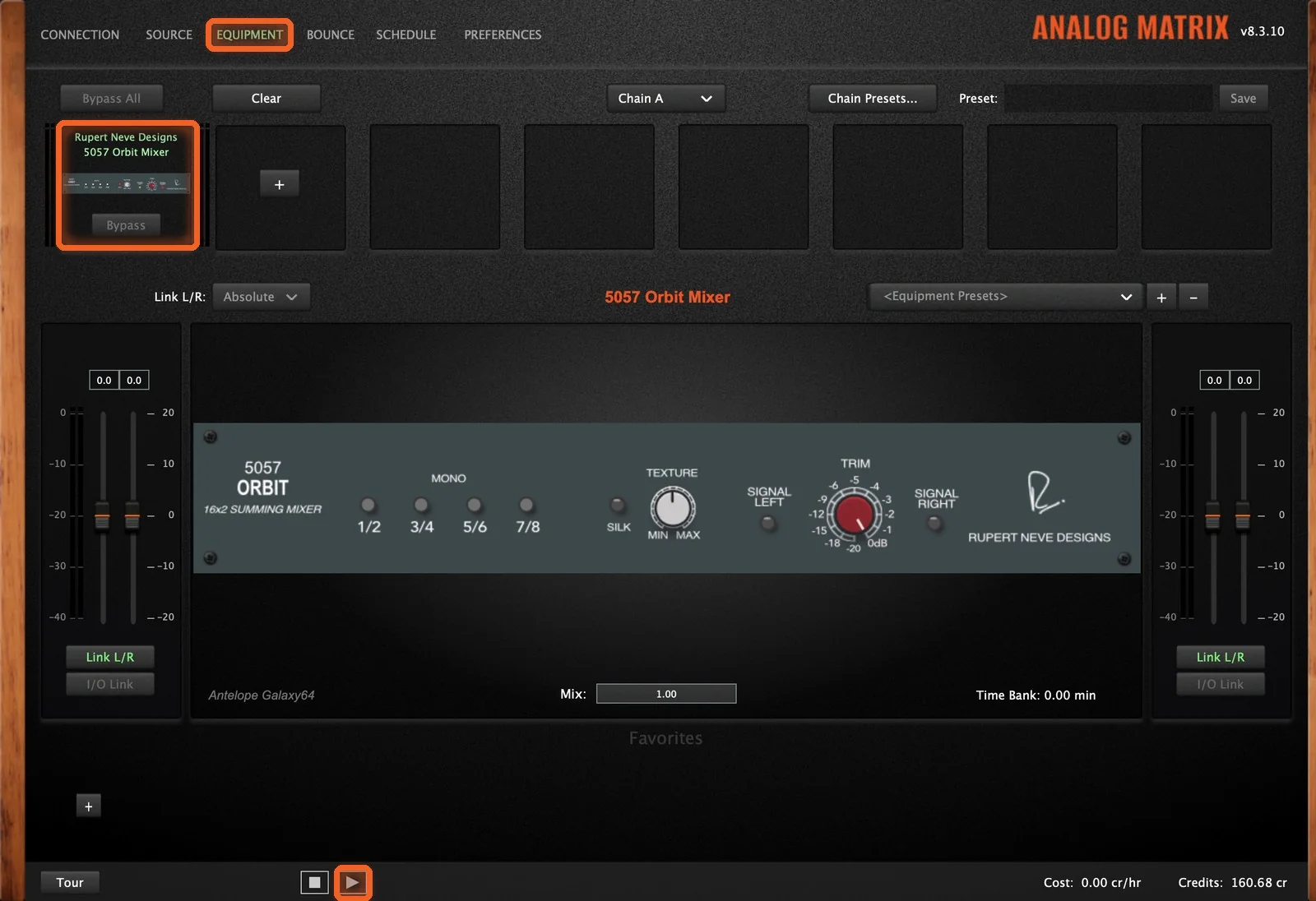
On the Equipment tab, add a summing mixer such as the Rupert Neve Designs 5057 Orbit as the first device in your chain. Then press play. The Orbit has no channel faders, so set the balance with each pair's gain on the Source tab. When the balance is right, bounce it.
Way 4: The Quick Rebounce
A client asks for one small change. If you saved a preset when you bounced, you're nearly done:
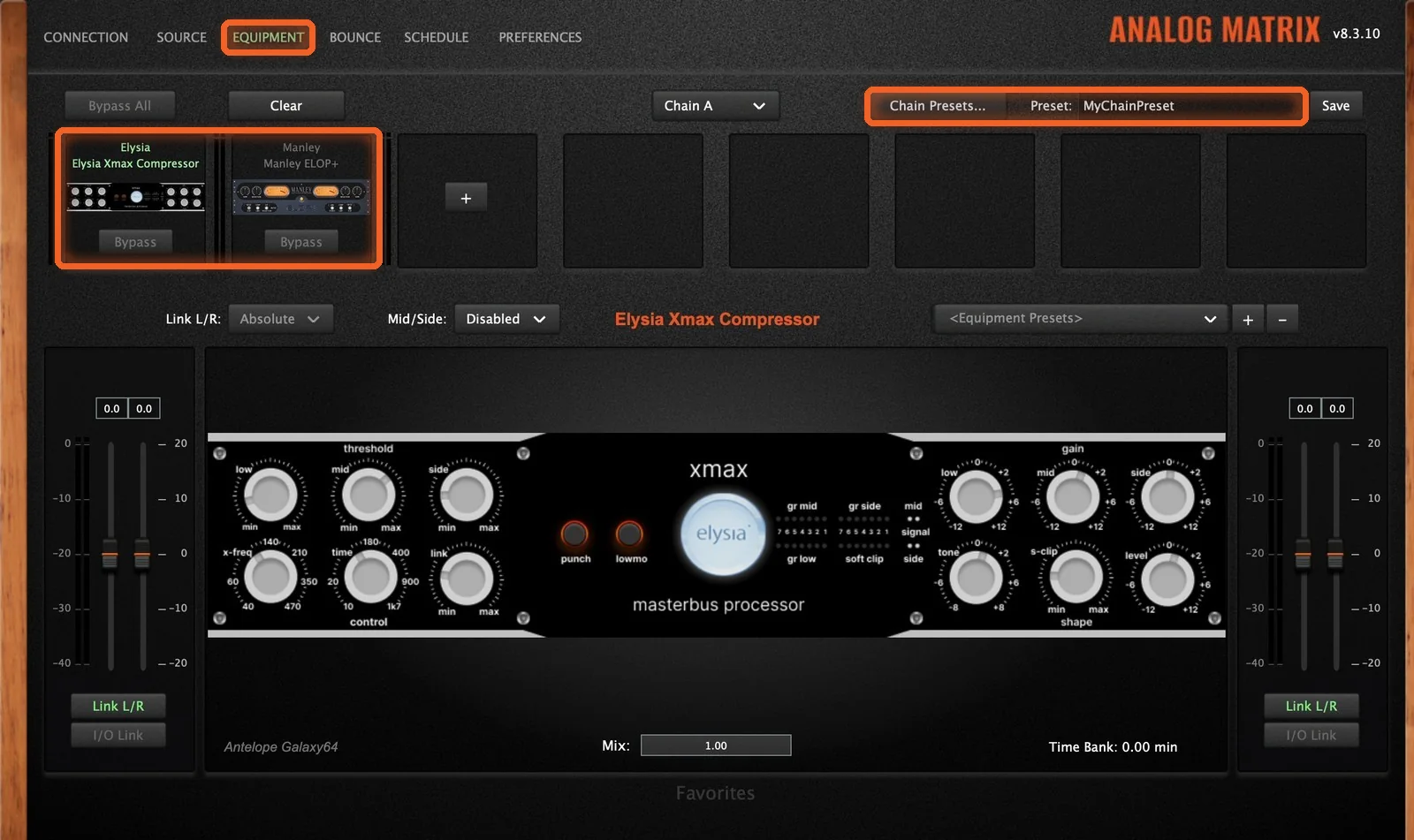
- Recall the preset on the Equipment tab.
- Load the source on the Source tab.
- Make your tweak.
- Bounce it again.
No DAW to open, and no session to find. Our Hardware Presets guide shows how to save and recall a chain.
How Do I Get Started?
Download the Analog Matrix. One free download from our downloads page installs the plugins (VST, VST3, AU and AAX) and the standalone app, for Mac and Windows. It is not an emulation: every knob you move turns a real control on real hardware in our racks.
Practice the workflow for free. A new account starts with 12 free credits, roughly an hour on an average device. The Iron Age LH95 EQ and the AudioScape Buss Compressor never use credits, so they're a good place to try the app before you master through anything else.
Pick how you pay for gear time. Buy credits on demand, reserve a unit for a set time, or move to the Access Analog Subscription (Essential, Pro or Elite) for the best rate. Multi-file bouncing comes with Elite.
Real Analog Gear, Without the Session
One file, many files, summing, or a quick rebounce: whenever the job is files instead of a live session, the standalone app gets you to the gear with nothing else in the way.
Run your mix through real analog gear, with no DAW required.
FAQs
What is the Analog Matrix standalone app?
It's the same Analog Matrix as the plugin, with the same gear selection, control and playback features, but it runs as its own application, with no DAW required.
How do I get the standalone app?
It's free, and it comes with the Analog Matrix download on our downloads page.
When should I use the app instead of the plugin?
When you're only processing files rather than DAW tracks. It's more efficient than running through a DAW, which is why it suits mastering, batches of files, summing stems and quick rebounces.
How do I hear the audio from the app?
Click Output Device at the top right and choose your speakers or interface. If your device has more than two outputs, make sure Output 1 + 2 is checked.
What sample rate should I use?
Ideally the app, your file and the format you stream in all use the same rate, so nothing has to be resampled.
Can I loop a section?
Yes. Drag across the waveform to mark a section, and it keeps repeating while you work on the sound.
Who can bounce multiple files at once?
Multi-file bouncing is for Elite subscribers, and it works in both the app and the plugin. Put your files in a file set, choose that set as your bounce source, and press Bounce.
How many channels can I sum?
Up to 16: eight stereo stems, sixteen mono, or any mix of the two. Put the summing mixer first in your chain.
Hear what real analog gear does to your own mix, before you buy a single piece of it.
Run real outboard hardware from your DAW. New accounts get 12 free credits.
Connect todayMore in Getting Started
All posts →